Key takeaways
- Cooling. Boost clocks drop when the CPU is hot. Confirm the cooler is mounted firmly and fan curves are sensible before blaming a setting.
- Windows power plan. Balanced or Performance is fine for most desktops; avoid power saver if speed matters.
- Chipset and graphics drivers. Install the latest chipset driver from AMD or your board maker so Windows schedules threads and boost properly.
- Do not stack unknown changes. Avoid manual voltage or multiplier overrides unless you understand the limits of your specific CPU. Safe values depend on the chip and board.
If your processor feels slower than it should, the fix is often a handful of BIOS settings for CPU performance rather than new hardware. Memory running at a slow default speed, an outdated BIOS and a conservative power profile are the usual suspects. This guide walks through the changes that matter most on current AMD Ryzen (AM5) and Intel Core Ultra 200S (LGA1851) systems, in a sensible order, with the warranty and stability caveats attached. It is built from manufacturer documentation and published reviewer coverage, not from hands-on testing on our side, so treat every menu name as a guide: exact wording and locations differ by motherboard maker, model and BIOS version.
What to Know Before You Touch the BIOS
Back up first. Note down your current settings or take phone photos of each screen you change. Most boards also let you save a BIOS profile to a USB drive or an internal slot.
Know your reset option. If a change stops the PC from booting, you can normally recover by clearing CMOS with the motherboard jumper or button, or by removing the coin cell battery with the PC unplugged. Check your board manual for the exact method.
Mind the warranty. Intel states that changing frequency or voltage outside its specifications may void the processor warranty and gives enabling XMP as an example. AMD’s EXPO page carries a similar footnote saying that overclocking or undervolting, including changing memory timing or voltage, outside AMD’s published specifications will void the applicable AMD warranty, even when enabled through AMD software. Intel’s separate 200S Boost profile is described by Intel as warranty-friendly for its own opt-in settings only (details below). Decide for yourself how much risk you accept, and ask your PC maker or retailer if the machine is a prebuilt.
Work one change at a time. Change a setting, save, boot, check stability, then move on. If something breaks you will know which change caused it.
Step 1: Update the BIOS
Download the latest BIOS from your motherboard manufacturer’s support page for your exact board model, and follow their flashing instructions (most boards have a built-in flash utility that reads a file from a USB drive). Do not interrupt a flash and do not flash from an unstable system. Updates commonly bring newer CPU microcode and AMD AGESA code, which can improve memory compatibility and stability, and on older BIOS versions some options, such as XMP or EXPO entries, may be missing. Read the release notes before updating so you know what changed.
Step 2: Enable Your Memory Profile (XMP or EXPO)
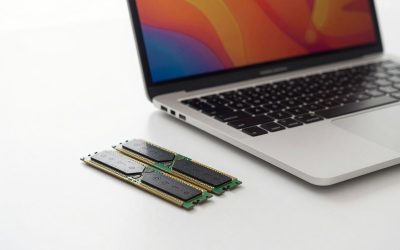
This is usually the biggest easy win. Memory kits boot at conservative standard (JEDEC) speeds until you turn their rated profile on.
- Restart and press the BIOS key shown on the splash screen, often Delete or F2.
- If your board starts in an easy mode, switch to Advanced Mode (often F7 on ASUS boards).
- Find the memory profile option in the overclocking or tweaker menu. It may be named AI Overclock Tuner, XMP, EXPO, DOCP or similar.
- Choose Profile 1 (or the profile that matches your kit’s rated speed).
- Save and exit, usually with F10.
- In Windows, open Task Manager, go to Performance, then Memory, and check that the speed matches the rating on the box.
Intel’s XMP page says XMP modules first boot at default JEDEC settings as a fail-safe, after which you can pick a profile in the BIOS. XMP 3.0 on DDR5 supports up to five profiles. Intel also advises confirming that your board supports XMP and that the kit is XMP certified. On AM5, the equivalent is AMD EXPO, which is designed for Ryzen on socket AM5 with DDR5. A kit built for one standard may still work with the other, but compatibility varies, so check the kit’s documentation and your board’s memory support list.
If you need a kit, look for one matching your platform. Search DDR5 EXPO memory kits on Amazon for AMD builds, or search DDR5 XMP memory kits on Amazon for Intel builds. Prices were not live-checked and change often.
Step 3: Choose the Right Power and Boost Behaviour
Intel: Default Settings versus unlimited power
Many Intel boards offer power profiles that either follow Intel’s recommended power limits or lift them. Community and retailer guides describe an “Intel Default Settings” style option (the name and location vary by vendor, for example under a Performance Options entry on some ASUS boards) that keeps PL1 and PL2 within Intel’s specification, versus vendor “unlimited” profiles that raise power draw and heat for extra speed. If you care about stability and quieter cooling, the Intel-spec profile is the safer pick. If you want more speed and have a strong cooler, an unlimited profile trades power and temperature for performance. Neither is a guaranteed gain for every workload.
Intel: 200S Boost
Intel’s XMP page describes 200S Boost as an overclocking profile for unlocked Core Ultra 200S processors, such as the Core Ultra 7 265K, on compatible Z890 motherboards and memory. Press coverage of the announcement says it requires a BIOS that includes the option, is off by default and needs your explicit opt-in, and caps memory at DDR5-8000 with specified voltage limits. Intel reportedly says using it does not void the processor warranty, but only for the profile’s own settings; changing other voltages or settings still falls under normal terms. Reports also note Intel does not guarantee every system will be stable with it, so test after enabling.
AMD: Precision Boost Overdrive
On Ryzen, Precision Boost Overdrive (PBO) relaxes the power, current and thermal limits that normally cap boost clocks. On boards such as ASUS AM5 models it sits under Ai Tweaker, and reported options include Auto, Disabled, Enabled, Enhancement, Manual and Eco mode. Exact names differ by vendor. Start with plain Enabled or the board’s default, and check temperatures under load before going deeper. AMD’s warranty footnote treats this kind of tuning as outside published specifications, so enabling it carries the warranty risk described above. Gains depend heavily on your cooler and workload, and we have no numbers to quote.
Step 4: Check the Settings That Quietly Hold You Back
- Cooling. Boost clocks drop when the CPU is hot. Confirm the cooler is mounted firmly and fan curves are sensible before blaming a setting.
- Windows power plan. Balanced or Performance is fine for most desktops; avoid power saver if speed matters.
- Chipset and graphics drivers. Install the latest chipset driver from AMD or your board maker so Windows schedules threads and boost properly.
- Do not stack unknown changes. Avoid manual voltage or multiplier overrides unless you understand the limits of your specific CPU. Safe values depend on the chip and board.
Step 5: Verify Stability
After each change, run the PC under a realistic load for a while and watch for crashes, blue screens, game freezes or errors. Keep an eye on temperatures with a monitoring tool. There is no single temperature or voltage that is “safe” for every chip, so check the maximum operating temperature in your CPU’s official spec page (AMD’s product page or Intel ARK). If you see instability, undo the most recent change, or step the memory profile down to a lower speed.
FAQ
Will enabling XMP or EXPO void my warranty?
Both Intel and AMD say in their own materials that running outside their published specifications may void the processor warranty, and Intel names XMP as an example. Policies for the memory kit itself and for prebuilt PCs are set by those manufacturers, so check with them.
My PC will not boot after a BIOS change. What now?
Many boards fall back to safe settings after a few failed boots. If not, clear CMOS using your board’s jumper or button, or the battery method in the manual, then reapply your changes one at a time.
Which BIOS setting gives the biggest improvement?
For most people, turning on the memory profile is the simplest change, since kits run at conservative speeds until you do. How much it helps varies by game and application, and we have no benchmark figures to give.
Are these settings the same on every motherboard?
No. Menu names, locations and defaults differ by brand, model and BIOS version. Use this guide for the concepts and your board manual for the exact steps.
FAQ
Will enabling XMP or EXPO void my warranty?
My PC will not boot after a BIOS change. What now?
Which BIOS setting gives the biggest improvement?
Are these settings the same on every motherboard?
More from Amazon
Programs that pair well with the guide above. Offers and eligibility are set by Amazon and may change.
Free shipping on eligible items, Prime Video and more. Eligible new members can start with a free trial.
Start a Prime free trialAudiobooks and podcasts to listen to on the go. Eligible new members can start with a free trial.
Try Audible freeAd-free music streaming. Eligible new subscribers can start with a free trial.
Try Music Unlimited freeA free business account with business pricing and bulk-buying tools for work, shop or home office.
Create a business accountAs an Amazon Associate we earn from qualifying purchases.


Write Your Review
No reviews yet. Be the first to share your experience!